> For the complete documentation index, see [llms.txt](https://truegems.gitbook.io/docs/llms.txt). Markdown versions of documentation pages are available by appending `.md` to page URLs; this page is available as [Markdown](https://truegems.gitbook.io/docs/how-to-claim-your-exclusive-way-to-fassets-nft-step-by-step/how-do-i-connect-my-wallet-to-truegems.md).

# How do I connect my wallet to truegems?

To mint your NFT, you need to connect your wallet. truegems is a Web3 platform, requiring you to connect your wallet to interact with it. We use WalletConnect, a tool designed to make digital ownership effortless, intuitive, and secure.&#x20;

**Step 1**

Click "Connect wallet"

<figure><img src="https://1336787485-files.gitbook.io/~/files/v0/b/gitbook-x-prod.appspot.com/o/spaces%2FzL1KYkPN4i6njuTE6kXv%2Fuploads%2FbVoNZbiDE7bYVz7O16fW%2F01.png?alt=media&amp;token=02447e76-8dbd-4aa7-83a4-a33cba9133f4" alt=""><figcaption></figcaption></figure>

**Step 2**

You can connect using any wallet supported by WalletConnect. For this example, we'll use Bifrost Wallet.

<figure><img src="https://1336787485-files.gitbook.io/~/files/v0/b/gitbook-x-prod.appspot.com/o/spaces%2FzL1KYkPN4i6njuTE6kXv%2Fuploads%2FzNFRTzvE4nLVBFJj5m4w%2F06.png?alt=media&amp;token=2e7315e0-8389-47be-997a-4a0ce40d5883" alt=""><figcaption></figcaption></figure>

**Step 3**

Scan the QR code with your wallet.

<figure><img src="https://1336787485-files.gitbook.io/~/files/v0/b/gitbook-x-prod.appspot.com/o/spaces%2FzL1KYkPN4i6njuTE6kXv%2Fuploads%2F9N21ZpVvxhhUr5nLmeyk%2F07.png?alt=media&amp;token=1b43abf9-ba59-48ed-8cee-920f746261c4" alt=""><figcaption></figcaption></figure>

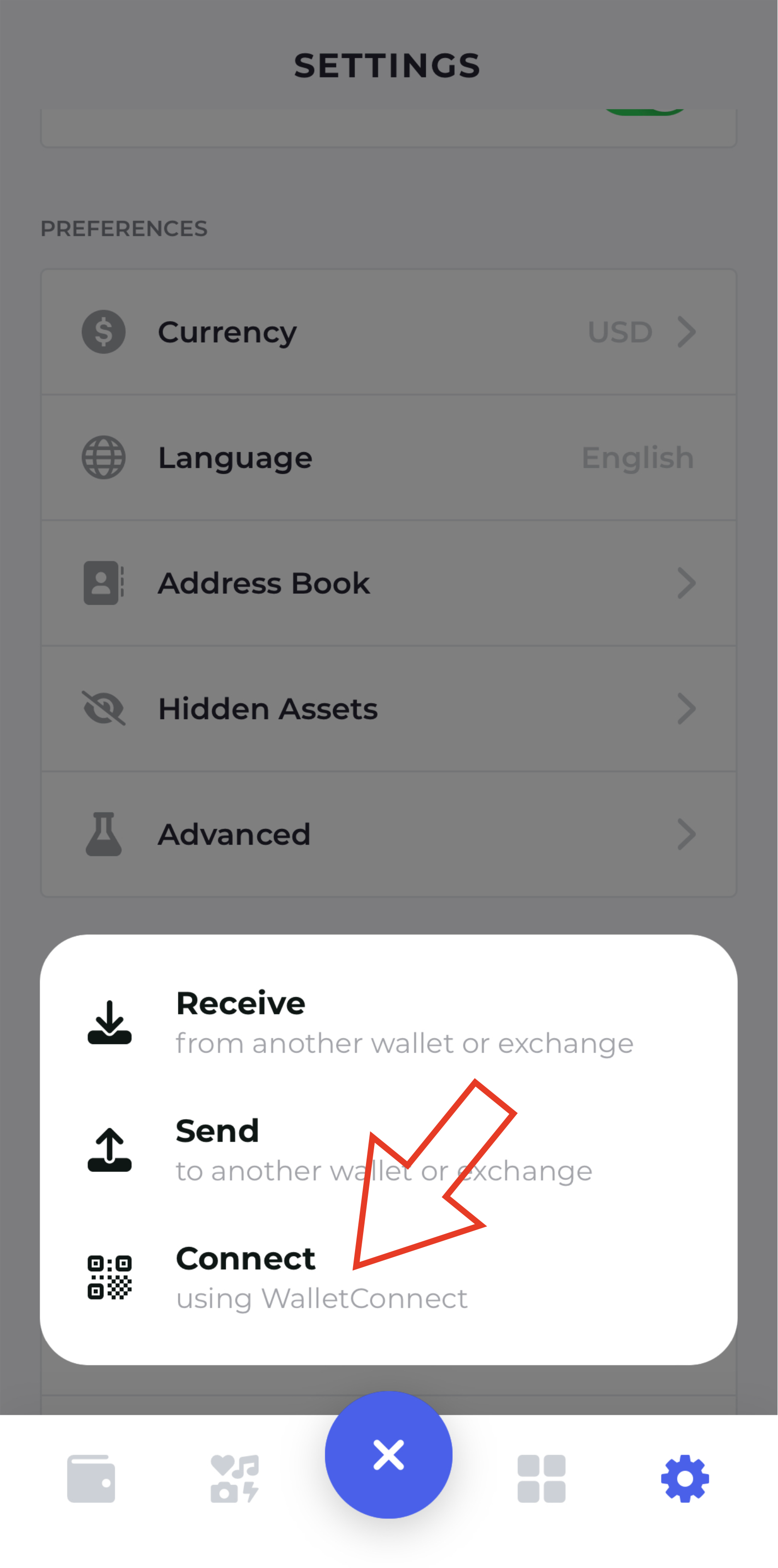
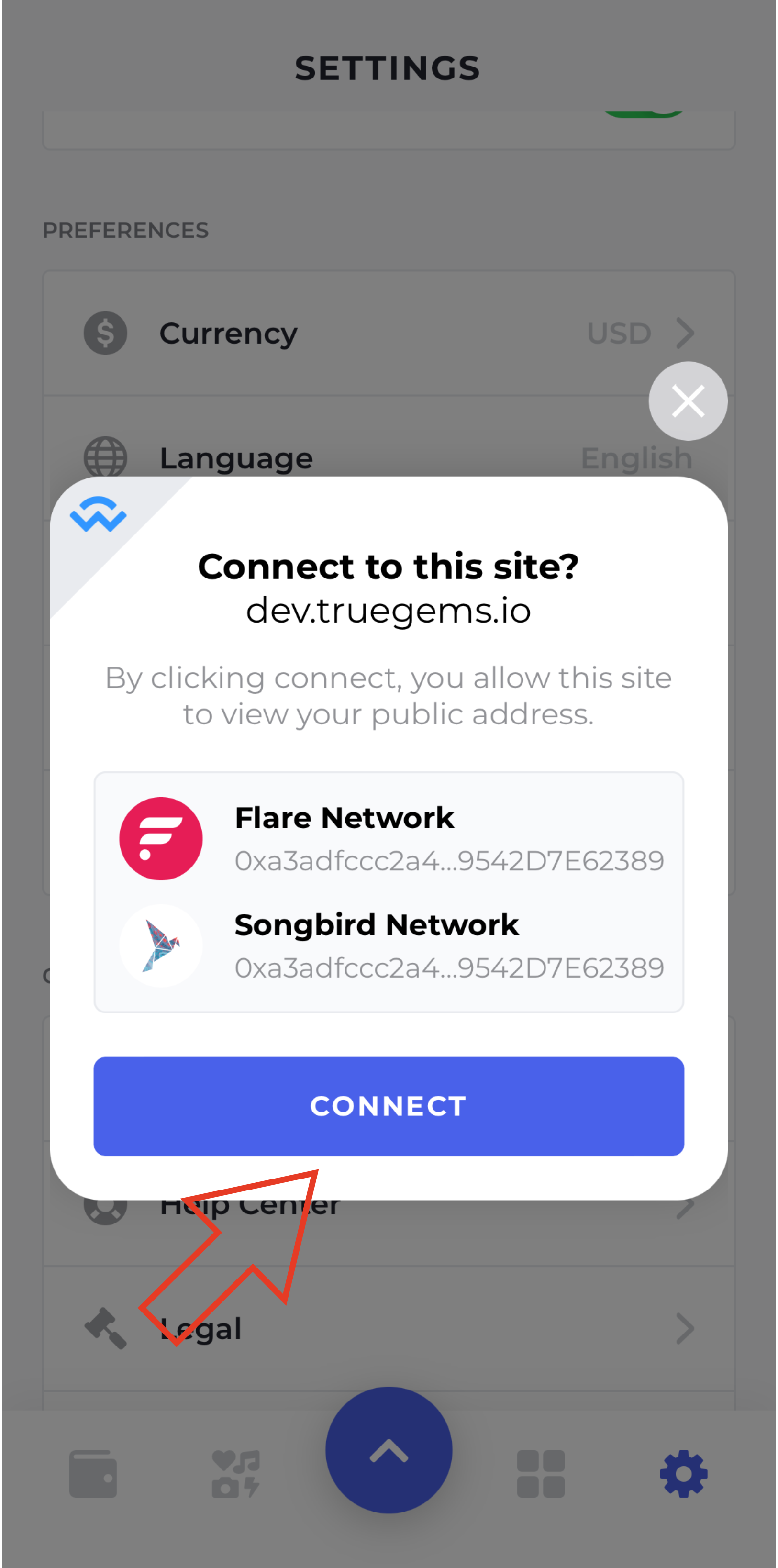
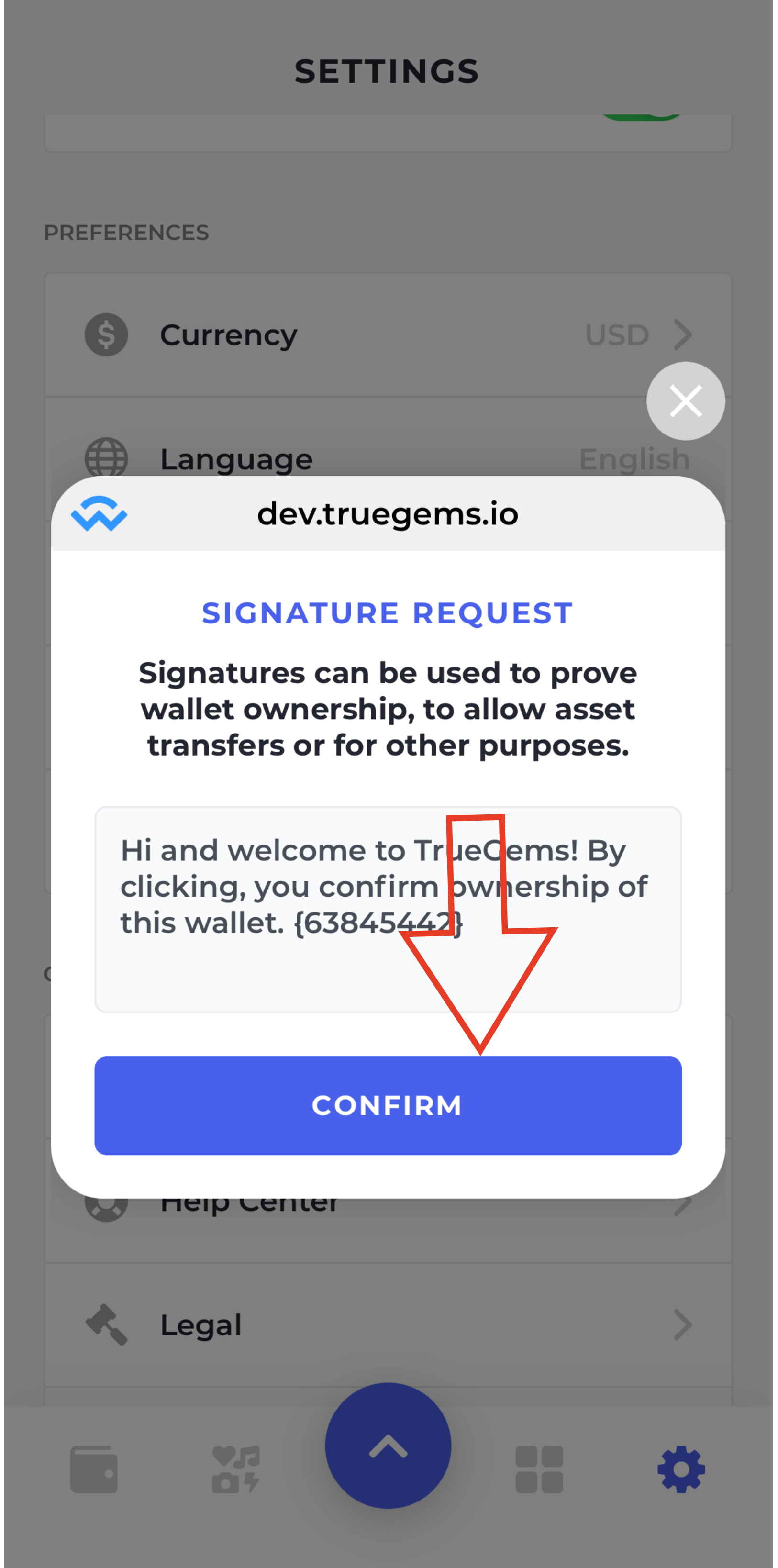
[To connect your wallet to truegems, follow steps A, B, and C on your wallet.](#user-content-fn-1)[^1]

<div><figure><img src="https://content.gitbook.com/content/zL1KYkPN4i6njuTE6kXv/blobs/asBLg8xO2RwS9xSnvin3/connect%2001%20.png" alt="" width="188"><figcaption><p>A. Choose "Connect"</p></figcaption></figure> <figure><img src="https://content.gitbook.com/content/zL1KYkPN4i6njuTE6kXv/blobs/tLxxuKIEFGbq1QwV9SEu/connect%2002.png" alt="" width="188"><figcaption><p>B. Connect to the network</p></figcaption></figure> <figure><img src="https://content.gitbook.com/content/zL1KYkPN4i6njuTE6kXv/blobs/LNK0UxN28LKQzmQ4Y5bI/connect%2003.png" alt="" width="188"><figcaption><p>C. Confirm the sign request</p></figcaption></figure></div>

**Step 4**

Once connected, truegems should display your FLR and WFLR balances and allow access to your profile.

<figure><img src="https://1336787485-files.gitbook.io/~/files/v0/b/gitbook-x-prod.appspot.com/o/spaces%2FzL1KYkPN4i6njuTE6kXv%2Fuploads%2FHsjKxwwg820bYDVE1zpi%2F06.png?alt=media&amp;token=71e34c01-fdb8-4a9a-9700-de3e51935d4b" alt=""><figcaption></figcaption></figure>

[^1]: